
60%
time














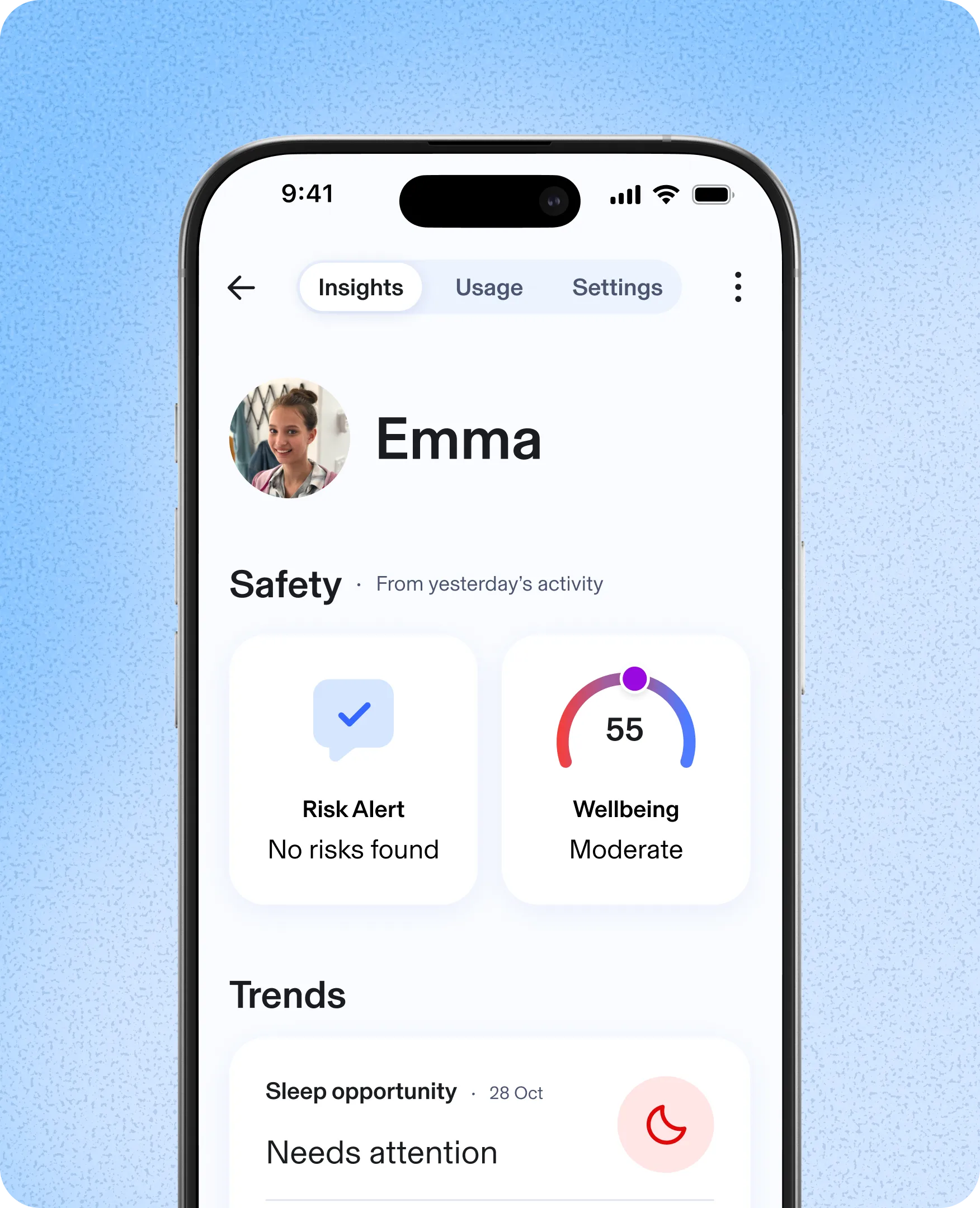
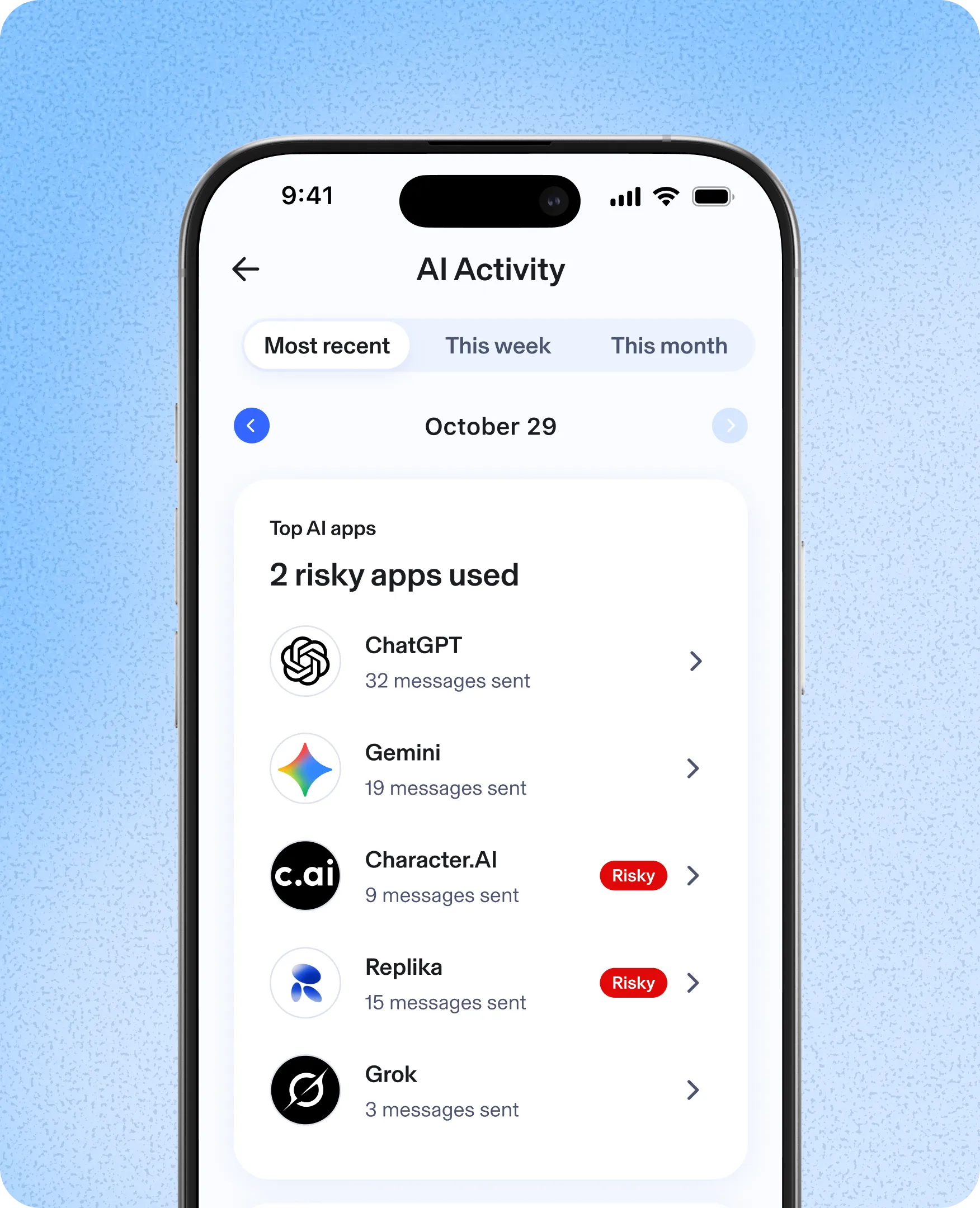
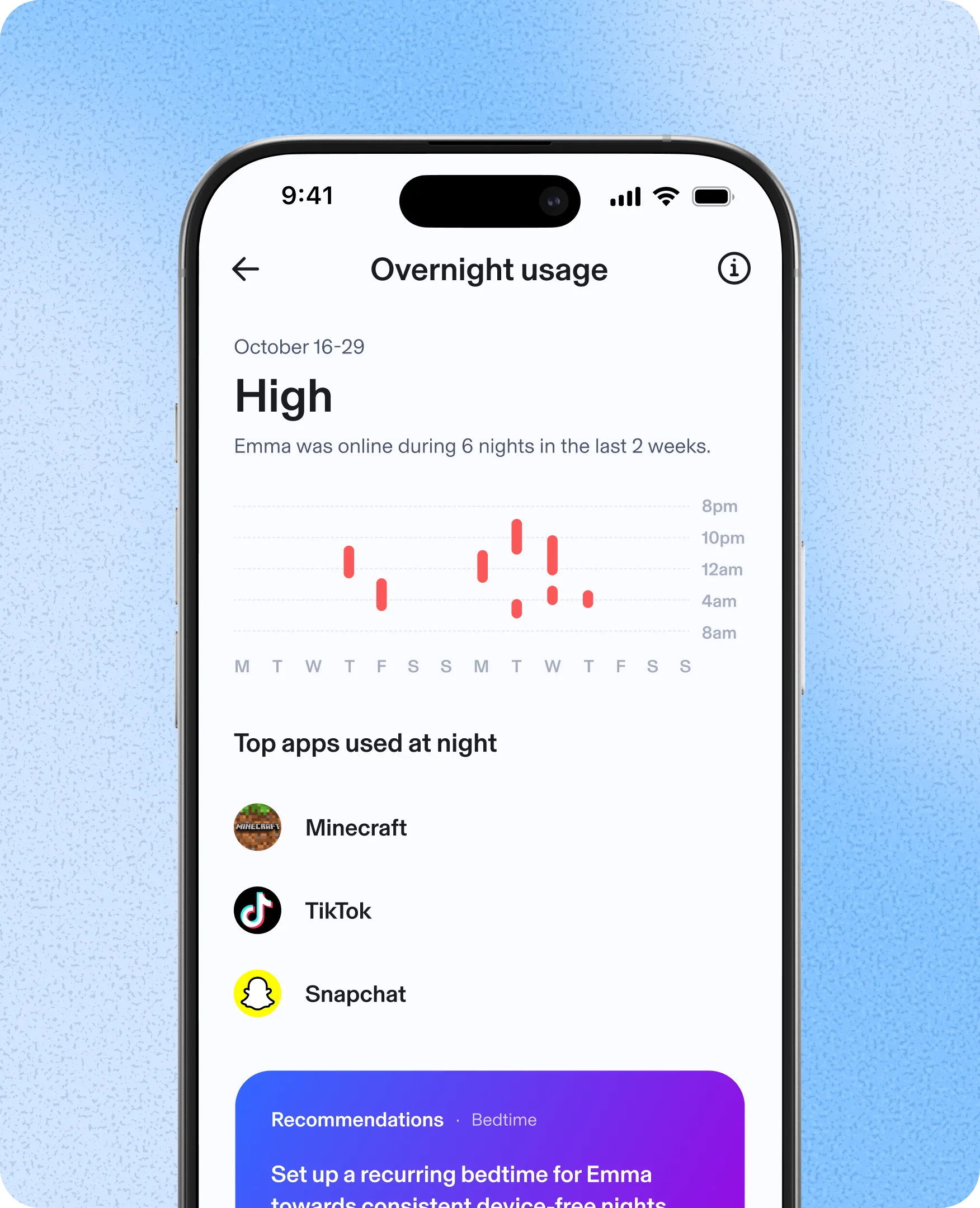
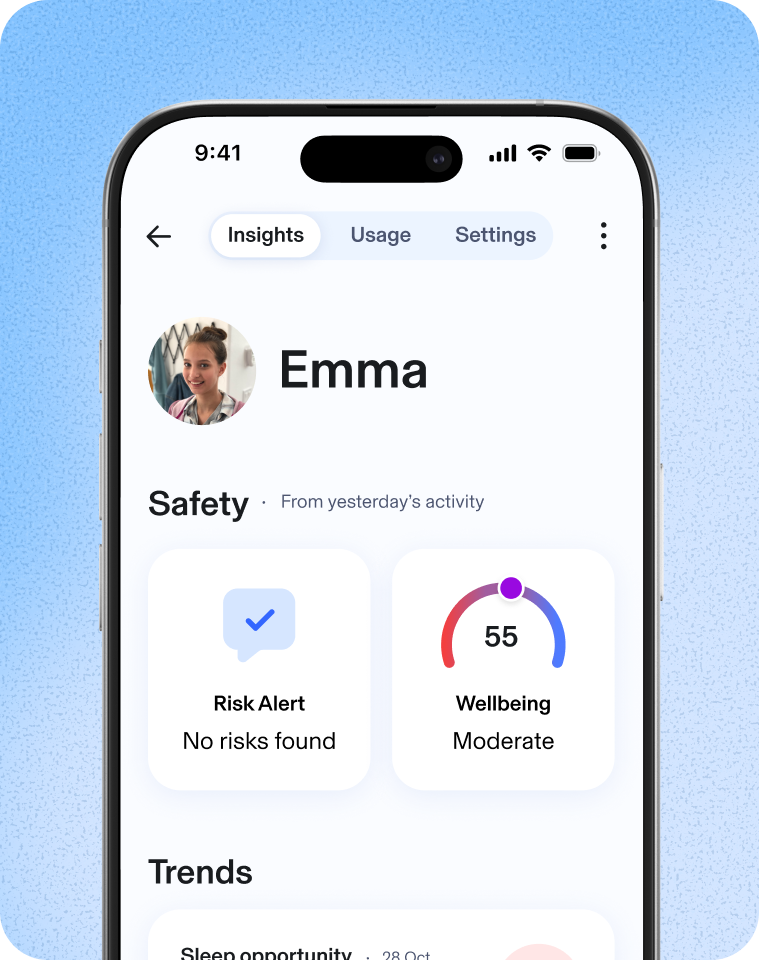
We start by blocking explicit content and establishing a baseline of digital habits.
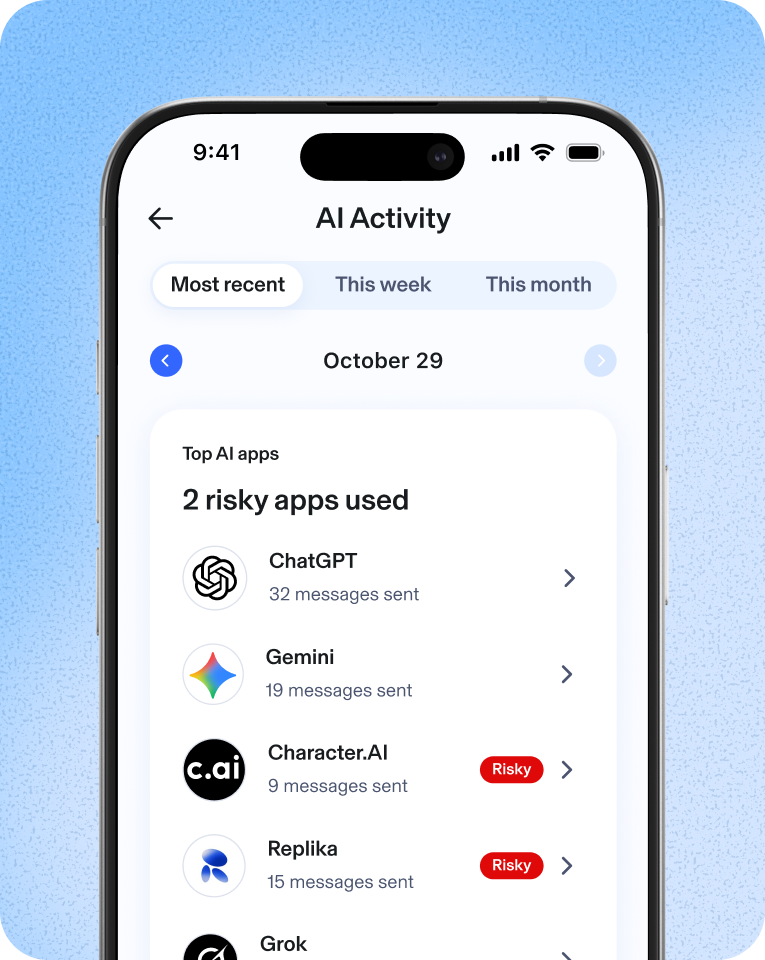
See early insights into AI chats and social media messaging.
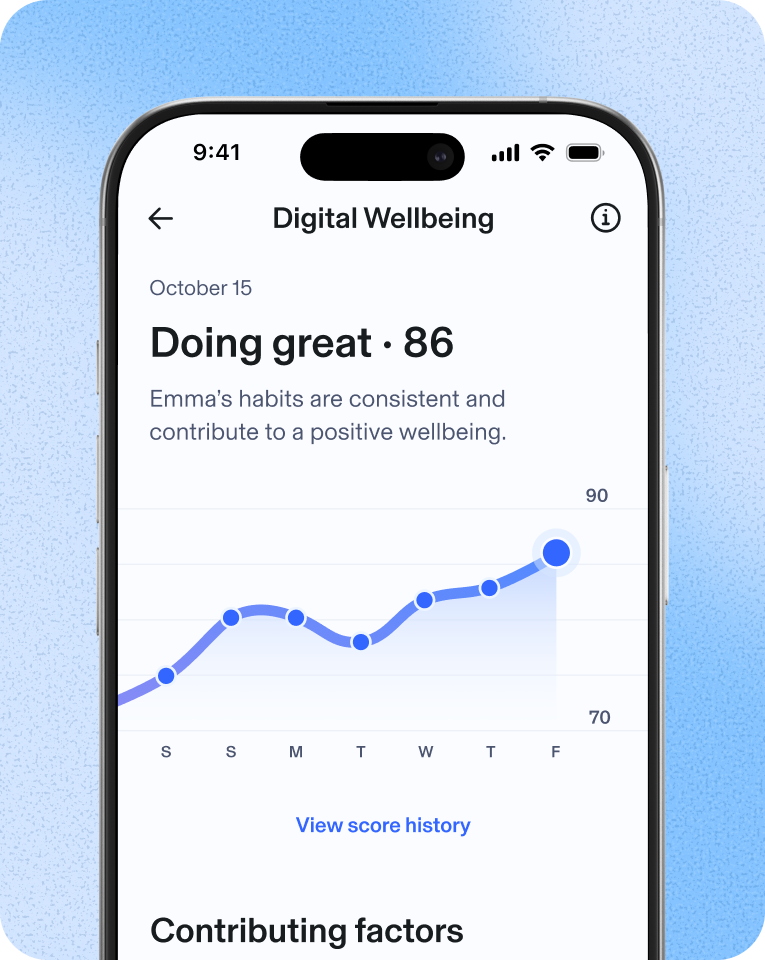
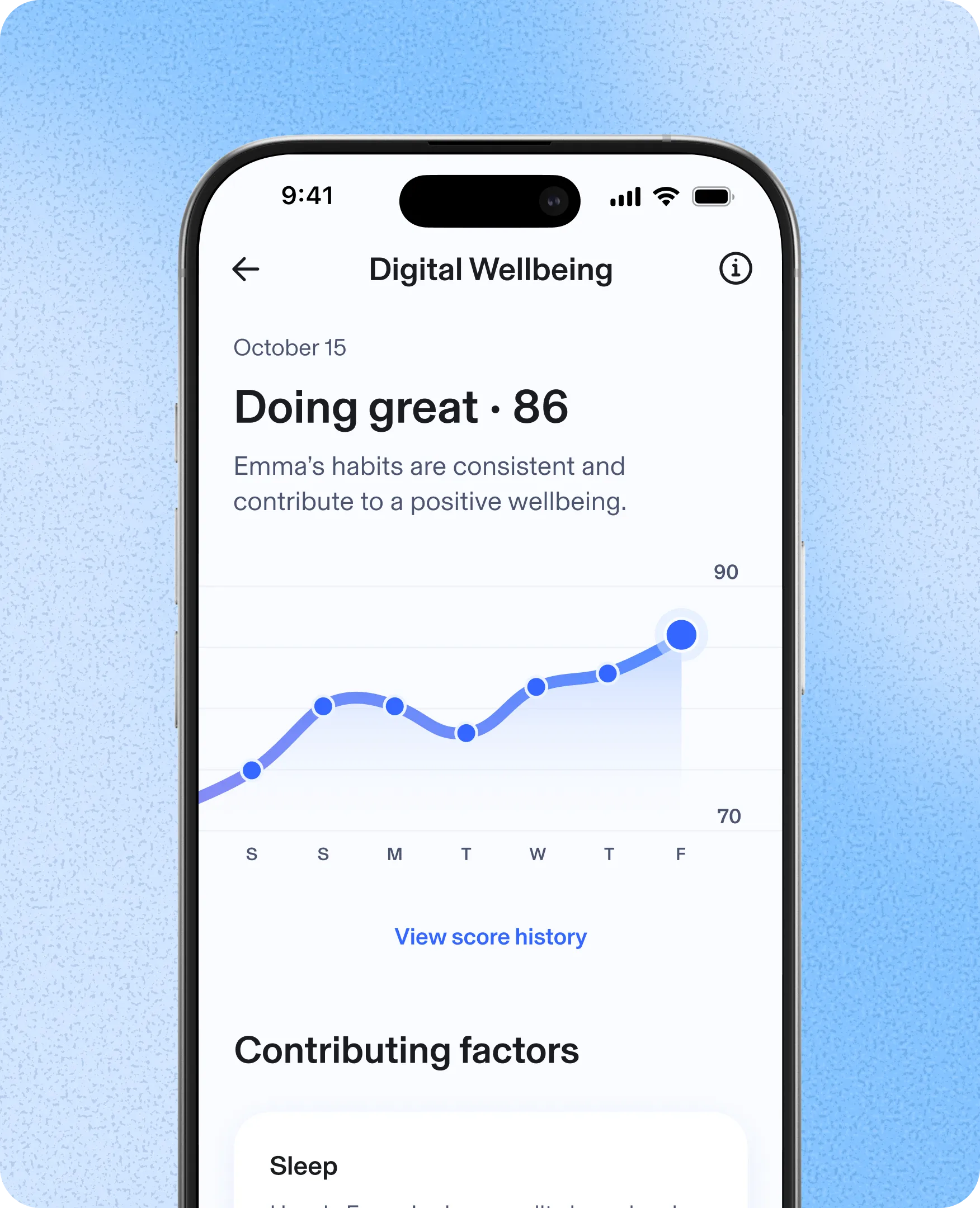
Your Kid’s Wellbeing Score appears—built using multiple behavioral signals to help you see changes.
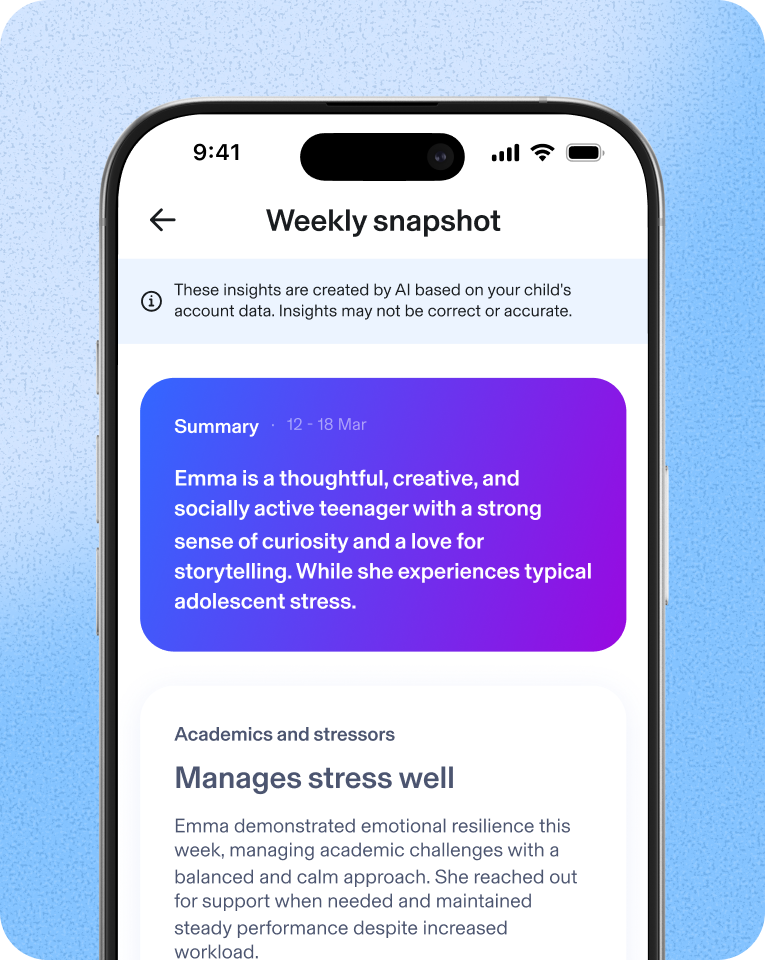
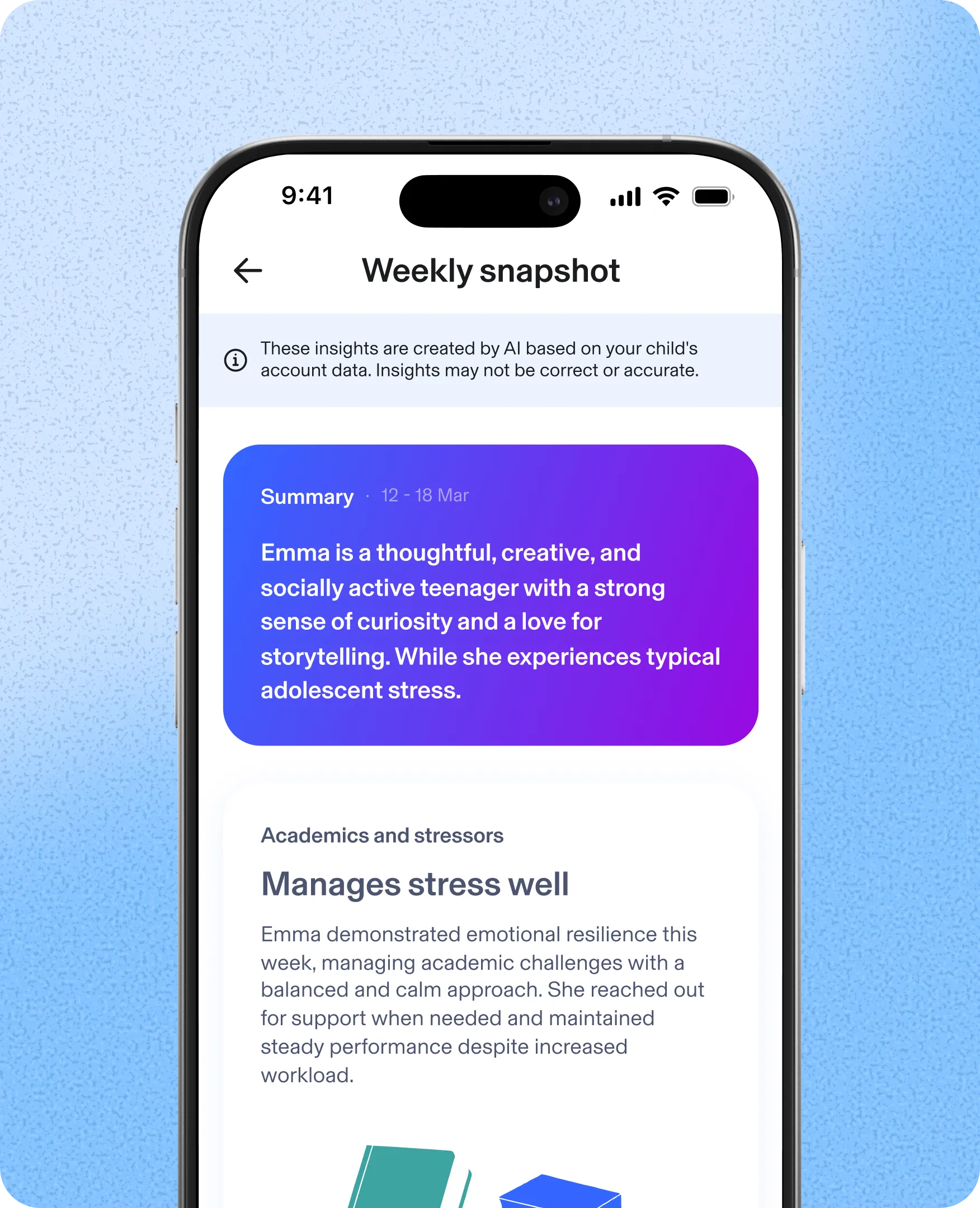
The Weekly Snapshot shows the highlights of weekly online activities to support ongoing conversations with your kid.
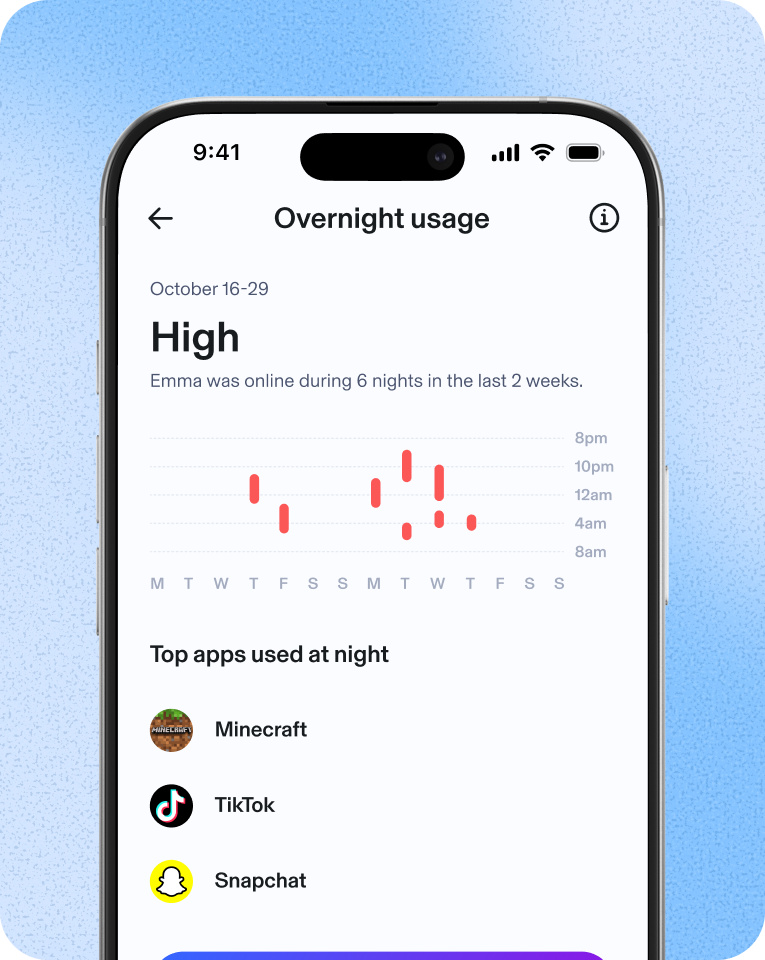
With 2 weeks of activity data, we provide insights on trends to help you see changes in their online life.

“It’s easy to set up and use — which can often feel like half the battle — and works seamlessly with both iPhone and Android devices.”
Introducing AI Chat App Alerts — get alerted when it matters
- Alerts: Get notified when your child starts a conversation with a high-risk AI chat app.
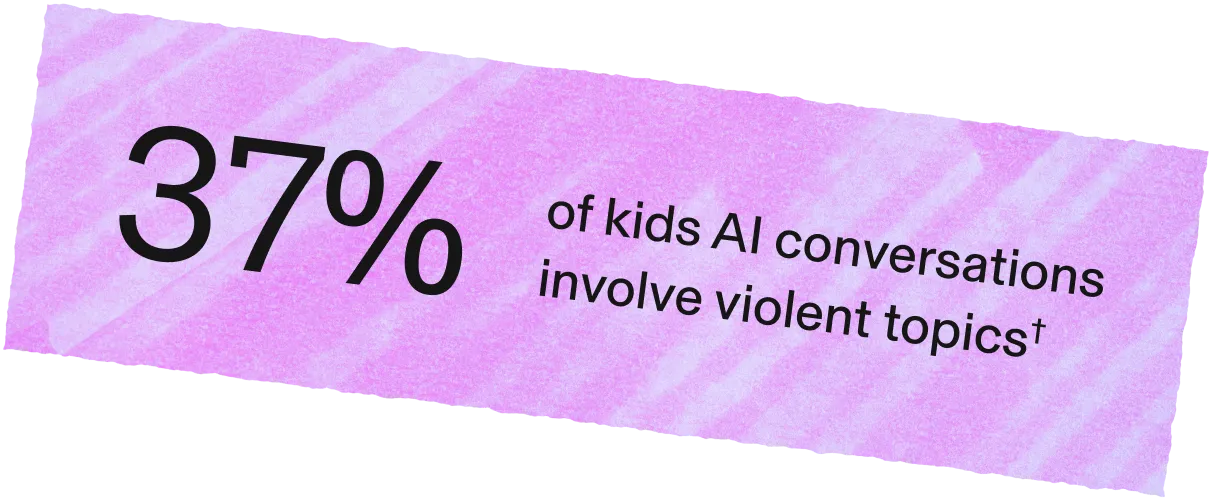
- AI Chat Insights: See AI app message volume and tone so you know when to check in.


Build healthy online habits
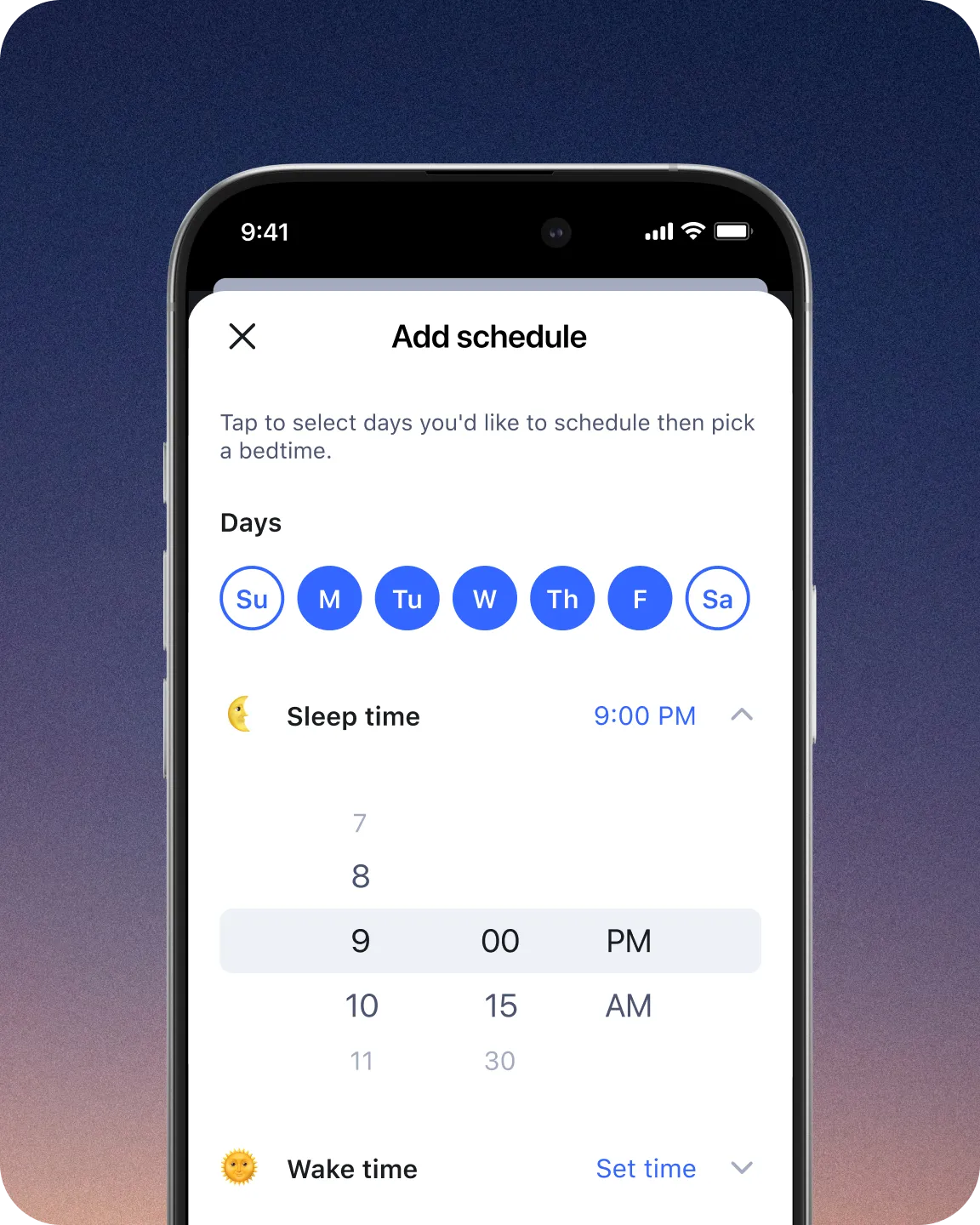
Set Bedtimes for weeknights and weekends. When bedtime rolls around, all devices associated with your child’s profile will automatically disconnect from the internet.

Focus Time lets you set times during the day with limited or no Internet distractions, where only selected apps and websites are allowed.

Know that your kids are safe from too much of a good thing — the internet. Set time limits for apps and websites and customize per child profile.
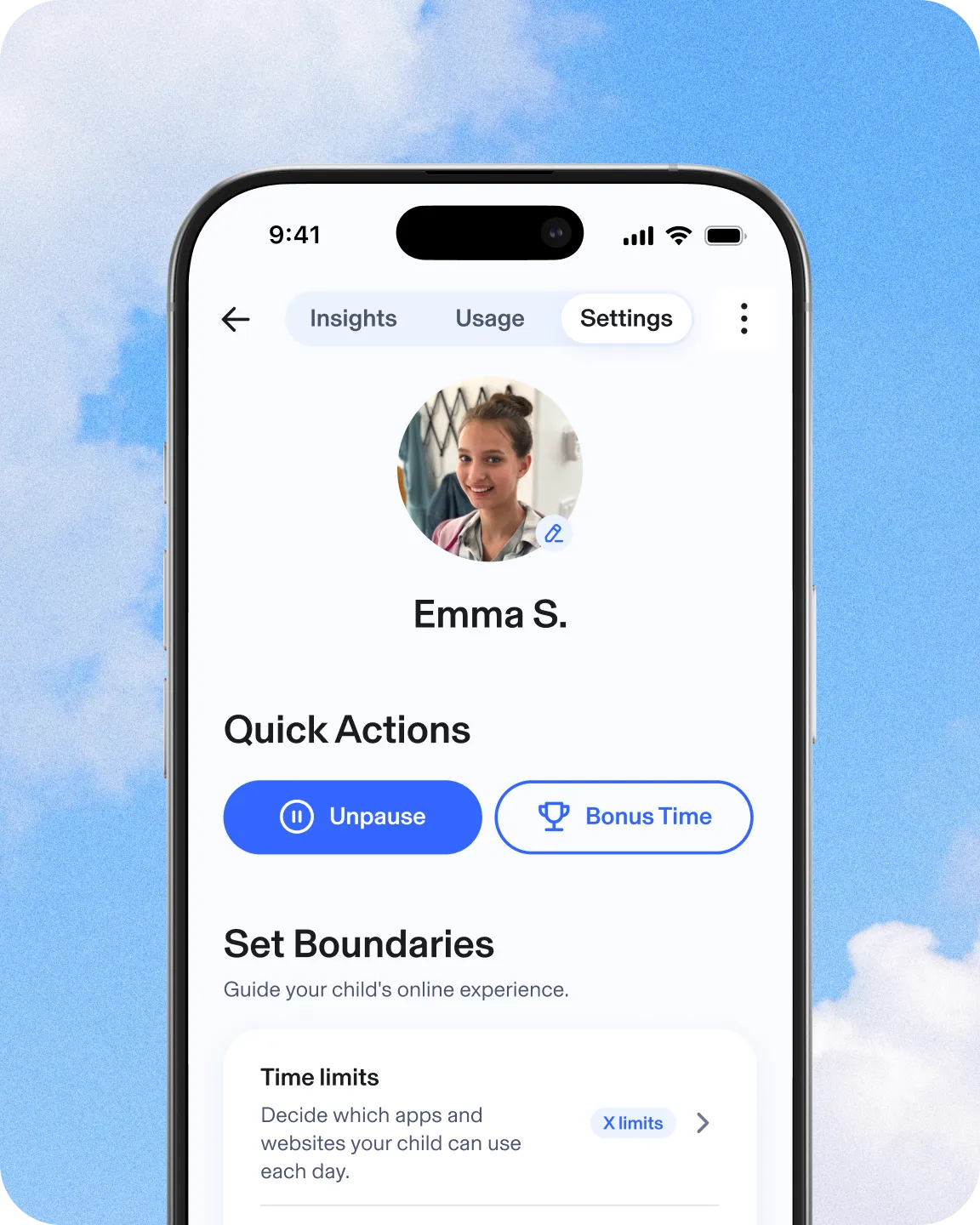
No more asking your kids three times to set down the iPad and start their homework. Pause the Internet easily enforces screen time limits.

Extend your kid’s daily time online with Bonus Time to reward good behavior or celebrate successes.
See why families love Aura Parents

Aura | Bark | |
|---|---|---|
Content Filtering |  | |
Screen Time Limits | | |
Focus Time, Bedtime, and Schedules | | |
Pause the Internet® | | |
Daytime & Nighttime Usage Trends | |  |
Wellbeing Score | |  |
Messaging Insights | | |
Weekly Snapshot | | |
AI Chat App Alert | | |
AI App Monitoring | | |
Risk Signals | | |
Get the insights you need to guide and protect your child online with Aura
Try any Aura plan free for 14 days. 60-day money-back guarantee on all annual plans.2






 Block Apps & WebsitesKeep out distractions and harmful content.
- Pause the Internet®Pause online access with one click.
- Set Screen Time LimitsHelp your child build healthier habits.
- Safe Gaming by KidasGet notified of risks in gaming chats.(Windows PC only)
- Create Focus Times & BedtimesSchedule device-free time for school, sleep, or family.
- Messaging InsightsFind out which apps your child is using to message. See message volume and tone.
- Daytime & Nighttime Usage TrendsSee patterns in daily routines and overnight device use.
- Wellbeing ScoreA research-informed indicator that reflects your child’s digital wellbeing.
- Weekly SnapshotA clear, weekly summary to support better conversations.
- AI App Monitoring & AlertsSee which AI chat apps your child uses and get notified about high-risk conversations.
- Risk SignalsAlerts when messages may indicate self-harm risk.
- Block Apps & WebsitesKeep out distractions and harmful content.
- Pause the Internet®Pause online access with one click.
- Set Screen Time LimitsHelp your child build healthier habits.
- Safe GamingGet notified of risks in gaming chats.(Windows PC only)
- Create Focus Times & BedtimesSchedule device-free time for school, sleep, or family.
- Messaging InsightsFind out which apps your child is using to message. See message volume and tone.
- Daytime & Nighttime Usage TrendsSee patterns in daily routines and overnight device use.
- Wellbeing ScoreA research-informed indicator that reflects your child’s digital wellbeing.
- Weekly SnapshotA clear, weekly summary to support better conversations.
- AI App Monitoring & AlertsSee which AI chat apps your child uses and get notified about high-risk conversations.
- Risk SignalsAlerts when messages may indicate self-harm risk.





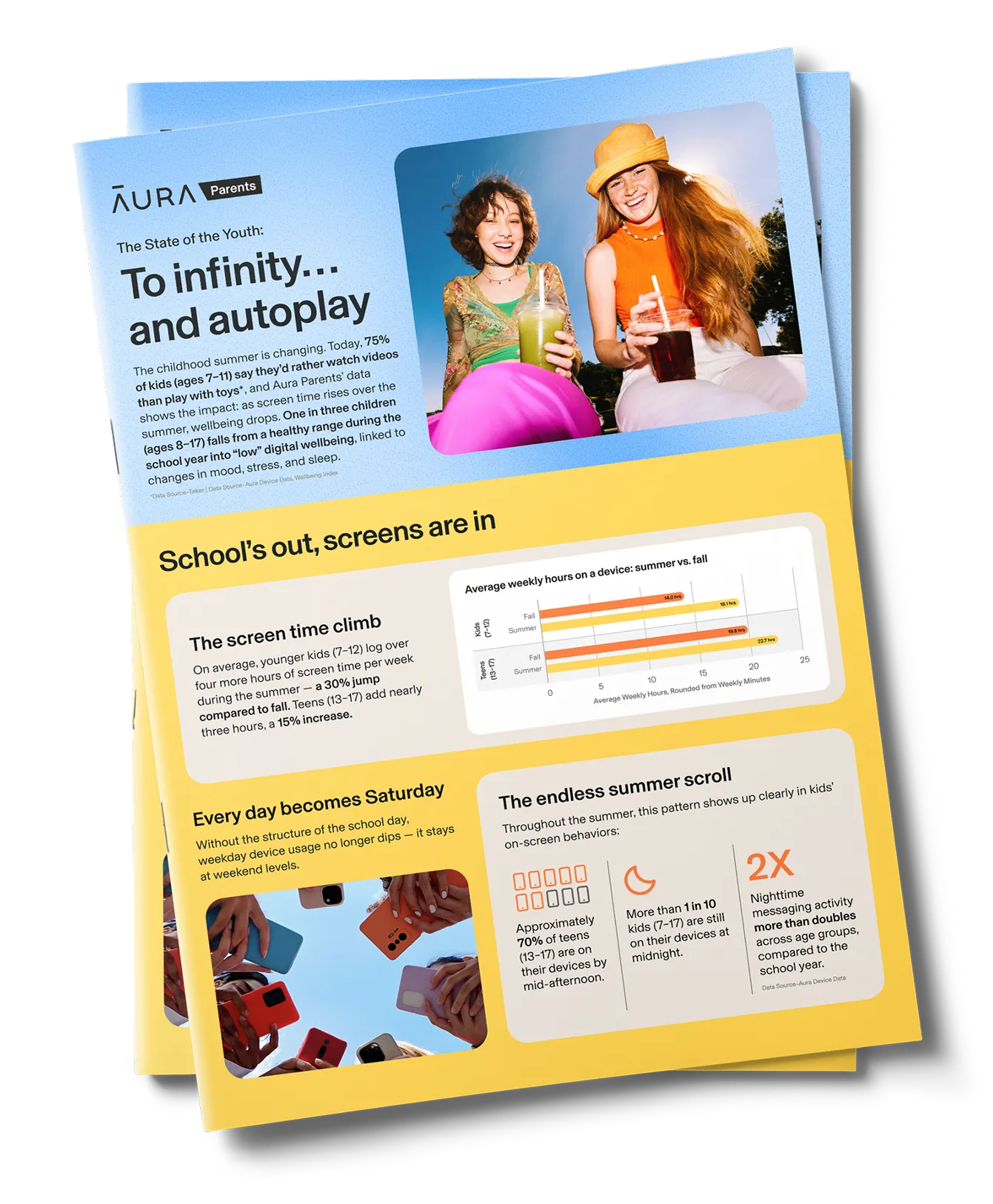

Reveal your kid’s perfect ‘90s summer
Turn screen time into real-world fun. Tell us what apps your child loves, and we’ll match them with offline summer activities they’ll actually enjoy.
Finish the quiz to get:
- A personalized “What You’ll Need” list specific to your child’s favorite app category.
- A Summer Device Agreement created with Common Sense Media to help set expectations around device use this summer.
Frequently asked questions
What devices does Aura Parental Controls work on?


Aura’s Parental Controls features work on Apple iPhones and iPads (iOS 16 or later) but not iPods, and Android devices (Android 12.0 or later).
Safe Gaming by Kidas works on computers that run Windows.
In-game communication monitoring is available on over 200 of the most popular PC games and gaming communication platforms, including Apex Legends, Roblox, Fortnite, World of Warcraft, and Discord.
How can I lock parental control settings so they can’t be changed or removed?
You can change the settings on your child’s device to prevent them from deleting or disabling Aura’s parental controls app. Here’s what to do:
On iOS:
- Navigate to Settings on your child’s iPhone or iPad.
- Tap Screen Time, then Content & Privacy Restrictions.
- Scroll down and tap on iTunes & App Store Purchases.
- Tap on Deleting Apps and select Don’t Allow.
On Android:
- You’ll first need to make sure you have Google Family Link app set up on your child’s device
- Then, open Google Play Store and tap on Account.
- Select Family, then Manage Family Members.
- Tap on your child’s account and change the app permissions settings to restrict app deletion.
What are some other ways to help keep my kids safe online?
- Update privacy settings: Most apps, social media sites, and even gaming consoles like Nintendo Switch and Playstation have privacy settings you can update to limit who can interact with your child. Check the service or manufacturer’s website for specific information on changing privacy settings.
- Learn about your device’s built-in settings: For example, Apple iOS devices allow parents to restrict app downloads, change privacy settings, and filter content (music, movies, apps, and TV shows) based on content ratings.
- Enable SafeSearch and other kid-friendly features: You can update your web browser (such as Chrome or Safari), search engine, or even YouTube (under YouTube Kids) settings to help prevent your child from stumbling onto adult content.
- Educate yourself about social media use and trends: Knowing how your kids use apps and social media sites can help you proactively protect them against online risks and dangers. Read more about social media safety for kids.
When should my child get their own phone?
Unfortunately, there’s no “perfect age” for your child to get their own phone. The decision will depend on their maturity level, your trust in them, and your unique situation. To help you understand if your child is ready for a phone, take our free online quiz.
How can I learn more about Aura’s Parental Controls features?
If you still have questions about Aura’s parental controls or family safety plans, you can check our online FAQ, or call our U.S.-based support team 24/7 at: 866-692-1079.
How does Aura protect my child’s privacy?
Aura takes privacy seriously. Data is used only to improve our products and support research that benefits families. You can find more details in our privacy policy.
When should I start using parental controls?
A good time to consider using parental controls is when your kid gets their first device or smartphone or starts using a device without supervision.
Aura’s parental controls help you to understand and control your child’s activities on their devices. For example, you can block inappropriate content, set time limits for specific apps and receive notifications when they go over, view their web browser history, and get insights into their online activity.
Kids today are surrounded by technology and their relationship with it changes over time. At times, you may want to consider adjusting your parental controls settings for each child’s account. Aura Parental Controls are flexible and customizable making them a great tool for kids of all ages.
What is Safe Gaming by Kidas? What does it do?
Your Aura plan includes access to ProtectMe, a safe-gaming software solution offered by Kidas for your family’s PC. ProtectMe by Kidas is designed to scan gaming-related communications in the background and send alerts to your email if cyberbullying or online predators are detected. Each week, you’ll get a report with your child’s overall threat severity exposure score, a breakdown of threats detected, and gaming time insights. To access this feature, you will need to download and install the Aura desktop app and then download and install ProtectMe by Kidas on your child’s PC. More information about this third-party service is available on the Kidas website.